Showing posts with label PDF. Show all posts

Friday, March 07, 2014

Remove PDF password and restrictions using Ghostscript via drag and drop

I deal with and process lots of PDFs. However, sometimes the security settings of the PDF documents cause trouble.

There are several online websites available to remove these restrictions. Most offline tools cost more than 20 dollars. Actually we can do this ourselves via drag and drop, if Ghostscript is installed, free of charge.
  1. If you don't have Ghostscript installed, download it from http://www.ghostscript.com/. It is free.
  2. Save the following code as a .cmd file.
    @echo off
    echo.
    echo.
    set PATH="C:\Program Files\gs\gs9.07\bin"
    echo **************************************
    echo.
    echo   Start processing, may take a while, please wait.
    echo.
    echo **************************************
    echo.
    echo.
    set filein=%~1
    set fileout=%filein:~0,-4%
    gswin64c -dSAFER -dBATCH -dNOPAUSE -sDEVICE=pdfwrite -sPDFPassword= -dPDFSETTINGS=/prepress -dPassThroughJPEGImages=true -sOutputFile="%fileout%_noPW.pdf" "%~1"
  3. Change this line according to the installation directory of the Ghostscript on your machine.

    set PATH="C:\Program Files\gs\gs9.07\bin"
     
  4. Change 'gswin64c' to  ‘gswin32c’ if you install the 32-bit version.
  5. Once the configuration is done, you can drag a password protected PDF to the .cmd file icon, a file without restrictions will be generated in the same folder.
  6. To change the icon of the file, create a shortcut to the .cmd file. The icon of the shortcut can be changed.
  7. If the PDF requires a password to open, then this password must be known to remove restrictions. In this case, the password should be provided to gswin64c via

    -sPDFPassword=YOUR PASSWORD
     
      
%%%
Update: Apri 2015
If you prefer to use software instead of this DIY approach, you may have a look at PDF Restriction Remover, which can be found at http://www.pdfconvertonline.com/pdf-restrictions-remover.html.

Friday, October 13, 2006

Free software 6: PDFsam


PDFsam is an application for PDF split and merge. Compared with PDFtools introduced in the previous post, it cannot be considered as a multi-functional tool.

However, as indicated in the picture, PDFsam supports mergence of several PDF pages from PDF documents. Although you can achieve this aim by splitting the PDF files first, it really rescues you out from lots of trouble, especially when you have to join a number parts of PDF documents.

You can download this program at http://pdfsam.sourceforge.net/.

© Wenbin

Wednesday, October 11, 2006

Free software 5: PDFTools


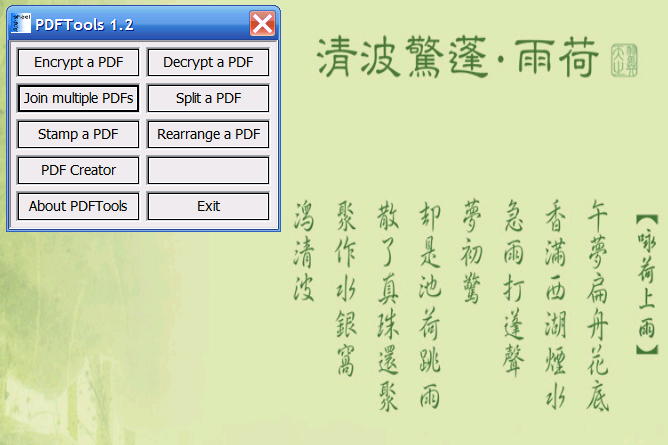
PDFTools is a versatile PDF management application. It helps you encrypt, decrypt, join, split, stamp, create and rearrange a PDF file. In the PDF creater, it includes a very powerful and simple converter to translate XML to PDF.

Its encryption module allows to modify the permission of a great range with the strength of 128 bit or 40 bit. The other tools are qutie easy to use and powerful too.

However, its PDF merge module joins individual PDF documents only, i.e. it cannot join several pages of a PDF document and others together. Therefore, you have to split the PDF first, then join them. This last paragraph sounds waste, everyone in the Earth knows it. OK, I admit that I will introduce another FREE PDF split and merge tool which can do it. So, see you next time. By the way, PDFTools' official website and download page is http://www.sheelapps.com/.

© Wenbin